★★★★★ 4.9 / 5 from 7,210+ users Live · Free

Word to PDF Converter — Convert Word to PDF in 3 Easy Steps (100% Free)

The fastest free Word to PDF converter online. Convert Word to PDF, DOCX to PDF and DOC to PDF in under 5 seconds — keep every font, image, table and heading exactly as it is in the original Word document. No watermark, no signup, 100% browser-based, completely private.

No Watermarks
Keeps Formatting
DOC & DOCX
100% Browser-Based
No Signup
1.8M+
Word Files Converted
99%
Formatting Preserved
<5s
Conversion Time
100%
Free, Forever
📝

Drop your Word file here

or click to browse — supports .doc and .docx

Supports DOC and DOCX files up to 50 MB

DOCX

Document.docx

0 KB

📝

Converting your Word file to PDF...

Preserving formatting, fonts and images

0%

Conversion Complete!

Your PDF is ready to download

Source File

DOCX

Output

PDF

PDF Size

0 KB

!

Oops! Something went wrong

Please try again with a different file

Word to PDF converter online free — convert Word to PDF, DOCX to PDF and DOC to PDF
Quick explainer

What is Word to PDF conversion?

Word to PDF means taking a Microsoft Word document (.doc or .docx) and producing a Portable Document Format (PDF) file that looks identical to the original — but is locked, universal and ready to share.

📝

What is a Word document?

A Word document is a file created in Microsoft Word using the .doc (legacy, pre-2007) or .docx (modern) format. Word files are editable — anyone with Word, Google Docs or LibreOffice can open and change them, which is why most professional documents are converted from Word to PDF before sharing.

📄

What is a PDF file?

PDF stands for Portable Document Format. It's an open standard (ISO 32000) developed by Adobe in 1993. A PDF preserves your fonts, layout and images on every device — so a Word to PDF conversion produces a file that opens identically on Windows, Mac, iPhone, Android or Linux.

Why convert Word to PDF?

You convert Word to PDF whenever a document needs to look exactly the same for the recipient — resumes, contracts, invoices, exam submissions, official forms. PDF also stops the recipient from accidentally editing or reformatting your Word document.

Quick comparison

Word vs PDF — when to convert Word to PDF

Both formats have a place. Here's a 30-second guide to help you decide when to keep a Word document and when to convert Word to PDF.

Word to PDF comparison — convert Word to PDF for sharing, keep Word for editing
What you needWord document (.docx)PDF (after Word to PDF)
Editing the file later✅ Best choice❌ Not editable without extra tools
Sharing with anyone, anywhere⚠️ Recipient needs Word/Google Docs✅ Opens on every device
Preserving exact formatting⚠️ Layout shifts between Word versions✅ Identical on every device
Sending a resume / CV❌ Risk of formatting issues✅ Recommended by every recruiter
Submitting university work❌ Most portals reject Word✅ Accepted everywhere
Signing a contract❌ Easy to alter✅ Industry standard
Printing⚠️ Inconsistent across printers✅ Print-ready every time
Why FreePDFCompress

The Word to PDF converter that actually keeps your formatting

Convert Word to PDF, DOCX to PDF and DOC to PDF in seconds — built for students, professionals and businesses who need a clean, watermark-free PDF every time. Your Word file never leaves your browser.

Convert Word to PDF in Seconds

Upload a DOC or DOCX, click convert and download a clean PDF. Our Word to PDF converter is one of the fastest free Word to PDF tools online — no queue, no signup, no watermark.

DOCX to PDF & DOC to PDF

Whether you have a modern DOCX or a legacy DOC file, our Word to PDF converter handles both. Convert DOCX to PDF or DOC to PDF without losing fonts, headings, lists or tables.

📐

Keep Formatting, Fonts & Images

The Word to PDF converter preserves your document layout — fonts, headings, paragraphs, bullet lists, tables and embedded images all stay where they belong.

No Watermark, No Signup

Unlike most online Word to PDF converters, FreePDFCompress never stamps a watermark, banner or "converted by" footer onto your output PDF. The PDF is clean and print-ready.

🔒

100% Private & Browser-Based

Your Word document is converted locally inside your browser. Nothing is uploaded to any server — making this one of the safest Word to PDF converters online for resumes, contracts and confidential documents.

Lightning Fast Word to PDF

Convert Word to PDF in under 5 seconds. Works on Chrome, Safari, Edge and Firefox — desktop and mobile. No app install, no queue, no email.

How it works

How to convert Word to PDF online free in 3 steps

Convert Word to PDF, DOCX to PDF or DOC to PDF — free, no signup, browser-based.

1

Upload your Word file

Drag & drop your DOC or DOCX or click to browse — files up to 50 MB. The Word to PDF converter works with any Word document.

2

Click Convert to PDF

Hit convert and the Word to PDF tool builds a high-quality PDF in seconds — fonts, headings, lists, tables and images all preserved.

3

Download instantly

The converted PDF saves to your device — no watermark, no signup, no email. Share, print or upload it anywhere.

Use cases

When the Word to PDF converter helps

From resumes to contracts and university submissions, this is the go-to free tool to convert Word to PDF for every situation.

💼

Resumes & job applications

Most job portals require a PDF resume — not a Word file — to prevent formatting issues. Convert Word to PDF and submit with confidence.

📄

Contracts & legal docs

PDF is the standard for contracts, NDAs and legal forms. Use the Word to PDF converter to lock the document so it can't be edited.

🎓

University & assignment submissions

College and university portals usually accept only PDF. Convert your Word assignment to PDF in seconds — no formatting surprises.

📧

Email & client sharing

PDF opens reliably on any device. Convert Word to PDF before emailing so clients see your document exactly the way you wrote it.

🖨️

Printing & archiving

PDF is the universal format for print and long-term storage. Convert Word to PDF for stable printing and archive-quality documents.

📱

Cross-device sharing

The Word to PDF converter works on phone, tablet and desktop — any modern browser, no app install, no signup, no watermark.

Pro tips

7 tips for the best Word to PDF results

Get a pixel-perfect PDF every time. These are the same tips professional designers and recruiters use when they convert Word to PDF.

Word to PDF in 3 steps — upload Word file, click convert, download PDF
1

Save as .docx, not .doc

Modern .docx files are XML-based and convert to PDF with near-perfect fidelity. Legacy .doc files are a binary format that's been deprecated since 2007. If your file is .doc, open it in Word and re-save it as .docx before you convert Word to PDF.

2

Use standard fonts

Calibri, Arial, Times New Roman, Georgia and Helvetica all convert beautifully. If you used a custom or paid font, the Word to PDF converter will substitute a metric-compatible alternative — usually invisible to readers.

3

Embed images, don't link

Make sure every image is embedded inside the Word document, not linked from your hard drive. Linked images won't make it into the PDF. Insert > Pictures > "Insert" (not "Link to File") in Word.

4

Check page breaks first

Before you convert Word to PDF, hit Print Preview in Word and confirm the page breaks land where you expect. The PDF will respect the same page breaks, so any orphaned headings will carry over.

5

Use Heading styles

Use Word's built-in Heading 1, Heading 2 and Heading 3 styles instead of bold + bigger font. Real headings convert into a tagged PDF — better for accessibility and search engine indexing of your PDF content.

6

Compress after converting

Word documents with many images often produce large PDFs. After Word to PDF conversion, run the output through our PDF compressor to shrink it for email or upload portals — without losing readability.

7

Always preview the PDF

After Word to PDF conversion, open the PDF in your browser or in a viewer like Adobe Acrobat Reader and skim every page. Catch any layout issues before the recipient does.

Privacy & safety

Is the Word to PDF converter safe?

Yes — your Word file never leaves your device. The Word to PDF converter is fully browser-based, so unlike upload-and-download services, your document is never sent to a server.

Word to PDF runs in your browser — your file never leaves your device
🔒

100% client-side

The Word to PDF conversion runs entirely in JavaScript inside your browser. No upload step, no server-side processing — every line of the conversion happens on your own machine.

🚫

Zero file storage

We never store, log or cache any Word file or generated PDF. There's nothing to delete because nothing is ever uploaded — making this Word to PDF converter compliant with GDPR and HIPAA workflows for confidential documents.

⚖️

Use offline-capable

Once the page has loaded, the Word to PDF converter keeps working even if you disconnect from the internet. Try it: load the page, switch to airplane mode, then convert your Word file. The PDF still downloads.

Learn more about how the Portable Document Format protects your data on the official Adobe PDF page or read the ISO 32000-2 specification.

FAQ

Word to PDF — frequently asked questions

Everything about how to convert Word to PDF, DOCX to PDF and DOC to PDF — answered.

How do I convert Word to PDF online for free?
Upload your Word file (DOC or DOCX), click Convert to PDF, and the Word to PDF converter generates a clean PDF in seconds — no watermark, no signup. The whole conversion runs locally in your browser.
What is the best free Word to PDF converter?
FreePDFCompress is a leading free Word to PDF converter because it preserves your fonts, headings, lists, tables and images — and adds no watermark. Most other Word to PDF tools either require signup or stamp branding onto your PDF.
Can I convert DOCX to PDF and DOC to PDF?
Yes. The Word to PDF converter supports both modern DOCX (Word 2007+) and legacy DOC files. Just upload the file and click convert — you'll get a high-quality PDF instantly.
Will the formatting stay the same in the converted PDF?
Yes. Headings, paragraphs, bold/italic text, bullet and numbered lists, tables and images are all preserved when you convert Word to PDF. The PDF looks like the original Word document.
Is the Word to PDF converter really free with no watermark?
Yes — 100% free. No signup, no email, no watermark, no daily quota. It's a Word to PDF converter that runs entirely in your browser. We do not store, track or upload your Word file.
Does my Word file leave my device?
No. The Word file is converted locally inside your browser using JavaScript. Nothing is uploaded to any server — making this one of the safest Word to PDF converters online for resumes, contracts and confidential documents.
Can I convert Word to PDF on mobile?
Yes. The Word to PDF converter works on phones and tablets — Chrome, Safari, Edge and Firefox. No app to install, no signup. Just upload your DOCX and download the PDF.
What's the file size limit for Word to PDF conversion?
Up to 50 MB per Word file, free. No daily limit, no quota, no signup. Convert as many Word files to PDF as you need.
Can I compress the PDF after converting from Word?
Yes — after Word to PDF conversion, use our Compress PDF tool to shrink the output PDF to any target size (1 MB, 2 MB, 500 KB or custom). Perfect for email and portal uploads.
How is this Word to PDF converter different from Microsoft Word's built-in "Save as PDF"?
Microsoft Word's Save as PDF feature requires you to have Word installed and a paid Microsoft 365 license. Our online Word to PDF converter is free, runs in any browser, works on phones and tablets, and produces a near-identical PDF without needing Office.
Does the Word to PDF converter support tables, lists and images?
Yes. The Word to PDF converter preserves tables (with borders and cell shading), bullet and numbered lists, embedded images, hyperlinks, bold, italic, underline and headings. Complex layouts like multi-column text and floating images may simplify slightly during Word to PDF conversion.
Can I convert Word to PDF in bulk (multiple files at once)?
Currently the Word to PDF converter handles one file at a time for maximum quality. To convert several Word files to PDF, just convert them one after another — each conversion takes under 5 seconds. Bulk Word to PDF conversion is on the roadmap.
Will the Word to PDF converter keep my hyperlinks clickable?
Yes. Hyperlinks in your Word document remain clickable in the converted PDF. The Word to PDF converter preserves the link target so any URL in the Word file becomes a working link in the PDF — useful for resumes that point to LinkedIn, GitHub or a portfolio.
What's the difference between DOC and DOCX in Word to PDF conversion?
DOCX is the modern XML-based Word format introduced in Word 2007. DOC is the legacy binary format used by Word 97–2003. The Word to PDF converter handles DOCX with full fidelity. For DOC files, we recommend re-saving as DOCX in Word first, then running the Word to PDF conversion.
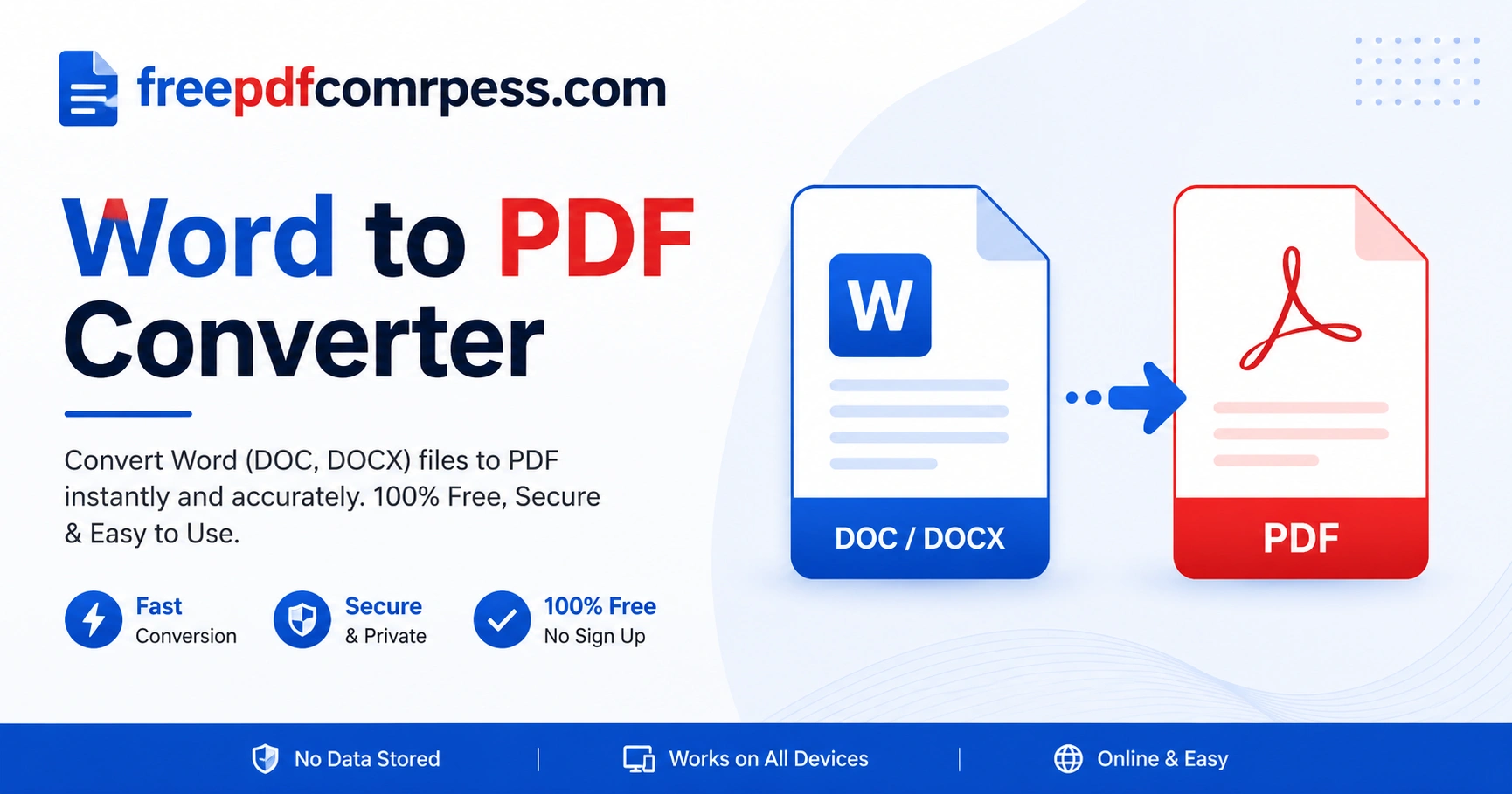
Word to PDF — free Word to PDF converter online

Free online Word to PDF converter. Convert Word to PDF, DOCX to PDF and DOC to PDF in seconds — keep your formatting, no watermark, no signup, 100% browser-based.

Convert Word to PDF Now